Showing posts with label WEB TOOLS. Show all posts

Post by Custom Categories/Labels Widget for Blogger (Easy)


To add a post by custom labels widget on your blog just follow me....


1st. go to blogger.com and go to your blog.


2nd. Click on Layout and click on Add a Gadget where you wanna add this. You can add it on Sidebar or anywhere you want.
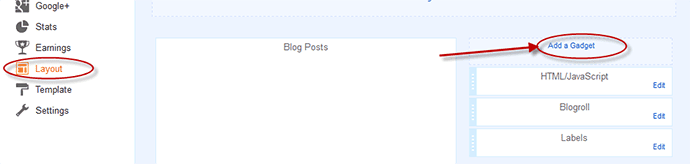


3rd. Then you will see a pop up window. Click on Html/Javascript for this window.


4rt. Here you will see 2 box. On the 1st box type your labels name and on the 2nd box paste the code from down...


 <script type='text/javascript'>var numposts = 5;var showpostthumbnails = true;var displaymore = false;var displayseparator = true;var showcommentnum = false;var showpostdate = false;var showpostsummary = true;var numchars = 100;</script>   
 <script type="text/javascript" src="/feeds/posts/default/-/PC GAMES?published&alt=json-in-script&callback=labelthumbs"></script>  

Note: You must have to replace PC GAMES with your label name from the code.

You can also customize on this code
var numposts ← Number of posts to display
var showpostthumbnails ← Show/hide thumbnails
var displaymore ← Show or hide the read more link
var displayseparator ← Show/hide separator
var showcommentnum ← Show/hide the number of comments
var showpostdate ← Show/hide the posts dates
var showpostsummary ← Show or not the posts summaries
var numchars ← Number of posts characters (here you have to change the 100 value)


 Thanks for reading this. If you got any problem just put it in comment section.

How to backup/Restore/Upload a Template on Blogger

Today's Post about How to Backup your Blogger Template and also How to upload a New Template on your Blog Site. It's simple. Just Follow my steps...

BACKUP/UPLOAD
1st. Go to blogger.com and log in with google account
2nd. Go to blog
3rd. Click on Template like as picture
4th. Click on Backup/Restore


5th. Click download full template to download your template
6th. Click Choose file to Upload new template and Click on Upload


That's it... Your work is complete. 
Thanks for reading this... and carry with Blog-Tech

Top 5 Free Hosting Site for Wordpress No Ads 2016!!


Everyone we know about wordpress. It's an wonderful tool for making any kind of site. But we have to buy Hosting for uploading a wordpress site. But there also have some free hosting site those are giving us space for hosting for free. There is the Top 5 Free Hosting Site for Installing Wordpress.

1. Free Hosting No Ads
Some features of this site

20 GB Space
200 GB Traffic
3 PHP Versions
POP3 Email Account
Free URL
Host Own URL
No Ads


2. WPnode
Some features of this site


Unlimited WordPress sites
5GB SSD storage
Unlimited data transfer
1GB email based on Roundcube
Free global CDN by CloudFlare
Preconfigured W3 Total Cache plugin
Manage your database via phpMyAdmin

Upload & Download files via SFTP


3. Freehostia
Some features of this site

5 Hosted Domain(s)
250MB Disk Space
6GB Monthly Traffic
 3 E-mail Accounts
 1 MySQL v.5 Databases
10MB MySQL Storage


4. ByetHost
Some features of this site

1000 MB disk space
50 GB monthly transfer
5 addon domains
5 park domain
5 email addresses
5 MySQL databases

Visit:byet.host

5. 000WebHost
Some features of this site

100 GB (100,000 MB) of bandwidth!
Almost endless 1500 MB disk space
Unlimited Free domain name hosting
Free Cpanel web hosting admin panel
No Ads, no banners!


Thanks for Reading. Stay with us for more tips

Wordpress Theme - "Sahifa" Responsive Magazine/Newspaper $59 Theme for Free


Sahifa News Theme is a clean, modern, user friendly, fast-loading, customizable, flexible, functional and fully responsive WordPress News, Magazine, Newspaper, and blog Theme.
Sahifa Magazine News Newspaper WordPress Theme

Sahifa Magazine News Newspaper WordPress Theme
Sahifa is one of the most favorite wordpress Theme for magazine or newspaper site. You have to buy it for $59. But now I'm giving you for Free. So, download It, Upload it and Enjoy it....

Features of Sahifa Theme
  • Fully Responsive (with Option to Disable it) .
  • Retina Ready .
  • Layouts Option (Wide, Boxed, Framed)
  • WooCommerce Ready .
  • Buddypress Ready.
  • bbPress Ready .
  • WPML Ready .
  • Responsive Google AdSense
  • Compatible with Infinite Scroll plugin .
  • Mega menu .
  • Option to set Icons for the Main Menu Items .
  • Drag Drop HomePage Builder with Multiple Blocks Layouts.
  • Unbranded Powerful Administration Panel.
  • Built-in Review System
  • Schema SEO Rich Snippet Review Microdata .
  • Sticky Navigation menu (with option to Enable/disable) .
  • Support Multiple page post .
  • 650+ Google Web Fonts. (Change elements fonts in the theme settings)
  • Mobile devices Friendly
  • Background image ADS
  • One Click Auto-Install demo sample data
  • Instagramy Plugin Included – save $15.
  • iLightBox Plugin Included – save $15.
  • Taqyeem Plugin Included – save $15.
  • Taqyeem – Buttons Addon Included- save $5.
  • Taqyeem – Predefined criteria Addon Included- save $6.
  • Theia Sticky Sidebar Plugin Included- save $17.
  • WordPress Multi level drop-down menu .
  • Localization Support (Easy to translate) .
  • Built-in Translation Panel.
  • Sticky Sidebars.
  • Unlimited sidebar. Create and select sidebar for each of your page/ post .
  • Optional Breadcrumb Navigation .
  • Built-in Related Posts Module with Two positions option (By category, tag or Author).
  • Pagination Integrated .
  • Easily adding Google analytics .
  • Full Screen background.
  • Unlimited colors .
  • OFF-canvas Mobile Navigation.
  • Ajax Live Search.
  • Flay-Check Also Box
  • Post Views System.
  • Weather Widget.
  • Masonry Layout.
  • 46 Pre-Defined Background Patterns .
  • 8 Theme Skins : Orange (default), Purple, Red, Pink, Green, blue, Black, Yellow
  • Breaking News With three Animation effects .
  • Option to Exclude pages or specific Categories from Search results .
  • Live jQuery Adding Comment validation .
  • Page / Post Layouts (Right Sidebar, Left Sidebar, Full Width)
  • Page / Post Modules.
  • Image Sliders
  • Optional 728×90 Leaderboard Banner support
  • 6 Footer Layouts
  • 10 Page Templates
  • 35 Custom Widgets
Live Preview

Download

Download & Enjoy

How to Create a Free Blog site in 2 minute by Blogger

Create a Blog


Now a days everyone have a blog site. If you haven't, it's a matter of sorrow. But now I gonna make you happy. Cuz you gonna be a owner of a BLOG. So let's start....


What is Blogger?

Blogger is a online Blog making tool developed by Google. So, of course it's a big tool. It's also super easy. To make a blog you not need any idea about Html, php, javascript........bla bla.... or anything. Just follow me and be a owner of a blog site.


1st steps

To create a Blog you must need a gmail account. If you have one, then go to next steps. Or create a gmail account from here

2nd steps
After getting a gmail account you have to go to blogger.com . Log in with gmail account.

3rd steps
Here you will see like this image. Just click on New Blog


4th steps

Here you will see a window. Now you have to put your Blog Title and blog url in these box. Give your blog name such as Blog-Tech on first box. Give blog url such as blog-tech.blogspot.com. You must put blogspot.com on your url. And then select a Template as your wish. See on image.


5th steps

If everything ok, Then your blog will be created. So this is your blog. For checking go to your url. Now I will show you some basic thing of blogger. 


Some Needed Things
If you wanna post on your site just click on new post. Here you will see 2 box. 1st box for post title. And the 2nd box for post content. You can post by html code. Just click on Html. You can change your text size, bold text, underline text, change text colour, put image, put link, put video. After writing your post click on publish or save it. See on image


If you wanna change your blog style, Just click on Template on your dashboard. To upload Template click on Backup/Restore, and for changing from default template click customize and select template as you wish. 


So, This is your blog. For Updating your blog follow our more tutorial. You can check our videos. Like our facebook page. And subscribe our youtube channel. For any kind of Trick stay with us...

Thanks

How to Select Blogger Post Thumbnails as you wish/select one from many

Change Blogger Post Thumbnails as you wish


Some of you asked me that they wanna use post thumbnails which they want. But blogger has no system of this. So, is there no way???

No, I'm giving you a way. Actually this is not a pst with lot of code. This is only a Trick. Not need to use any code, anywhere. This is a short trick. 

If you need to use some image in your post, then which image will be selected as thumbnails? Blogger select it automatically. Generally blogger select the 1st image. But if you need to select another, then what will you do? 


Just insert this photo by uploading which one you wanna use as thumbnails. Insert the other photo by doing copy from google or anywhere. You can upload the photo on facebook. Then go to the photo. click right button of your mouse and select copy image. Then go to the post and paste the image. Blogger won't count the photo as a photo, therefor it will select the image as thumbnails which one uploaded.  This is the trick. 

So, Enjoy

DOWNLOAD PC GAMES

DOWNLOAD PC APPS